Know where every job stands, in real time
See actuals, committed costs, and remaining budget across every job. Ramp brings your project budgets together with live card, bill, and PO spend.
Trusted by 5,500+ general contractors, specialty subcontractors, and developers.














Bring the project structure from your ERPs into Ramp's Budgets.
Connect your ERP to bring projects, phases, cost codes, budgets, and PM assignments into Ramp.
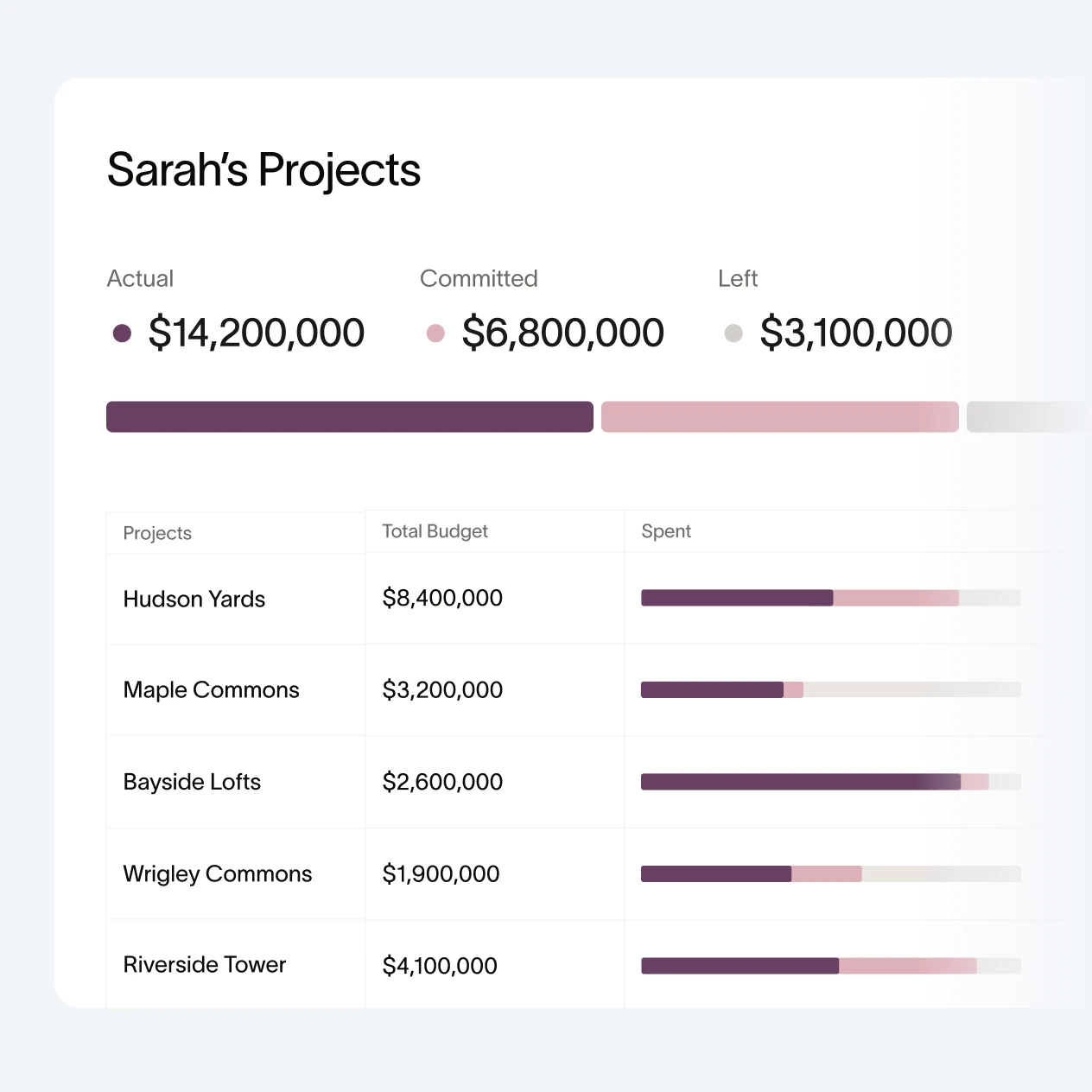
See every job vs budget in one view.
View project budget, actual Ramp spend, committed costs, and remaining budget across every active job in one place.
Spot budget risk early.
Set limits by job, phase, or cost code. Ramp flags purchases and bills that would put a job over budget before approval.
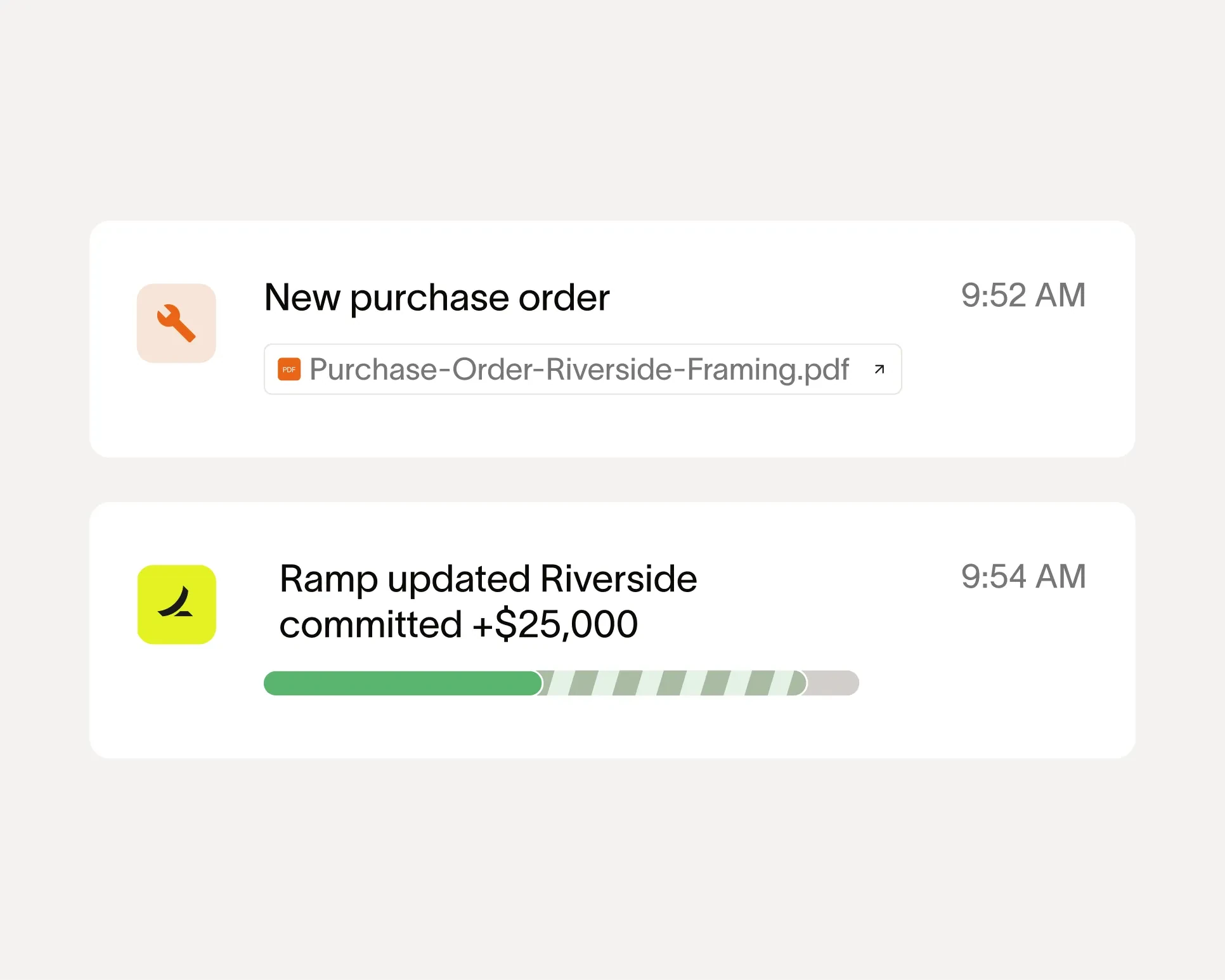
Keep PO commitments current.
When a purchase order updates in your ERP, Ramp reflects the new commitment, so Finance sees the impact before the invoice arrives.
One budget view for finance and project managers.
Finance sees the portfolio. PMs see the jobs they own.

Route every approval to the right PM.
Ramp uses ERP project assignments to send job-coded spend to the right PM, with finance stepping in only when needed.
Give every PM
a live budget view.
PMs see spent, committed, and remaining budget by job, phase, or cost code before deciding what to approve next.
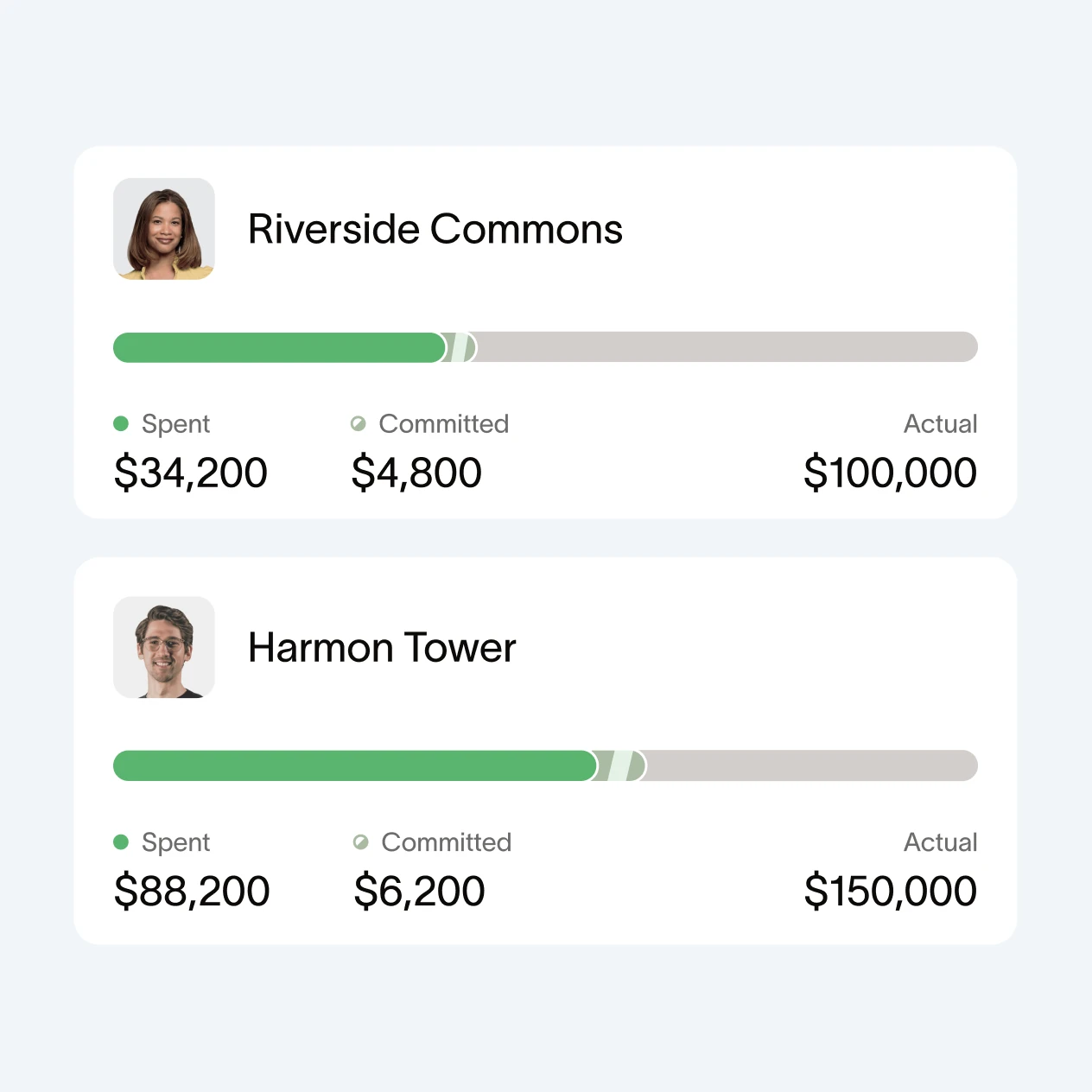
Keep every job within finance’s guardrails.
Finance sets budget and policy thresholds, so PMs can keep work moving without taking the job off plan.
FAQ
Ramp Budgets tracks plan vs. actuals in real time across all your Ramp spend—cards, reimbursements, Bill Pay, and committed POs. You can nest budgets up to five layers deep, map them to any ERP field (department, project, GL account), and build approval flows that automatically check budget context before approving spend.
Budgets is available on Plus and Enterprise plans.
Plus customers can get started in minutes: Navigate to Manage Spend > Budgets, build your structure, upload your budget, map line items. See the complete guide and video walkthrough.
Every Ramp spend type is mapped to Budgets in real time: Cards, Reimbursements, Bill Pay, and Procurement—including committed PO spend.
Any field already in Ramp—whether it's from your ERP (department, entity, GL account, project). You can also build roll up fields for custom reporting.
Budgets are built for tracking plan vs. actuals, not hard enforcement. For limits, use card controls, approval workflows, or Funds. You can also turn on budget-aware approvals—so your team sees budget status and gets flagged before spending pushes a line over budget.
Budgets is ideal for teams who want real-time spend visibility, budget context in approvals, and delegated control. Especially powerful if you're using the full Ramp platform or managing multiple entities.